
gallery-dl downloads image collections from supported websites through one command-line interface. I installed gallery-dl 1.32.9 in a fresh Python virtual environment, previewed a Wikimedia Commons file without downloading it, and then confirmed the saved file before writing these steps.
Choose gallery-dl for collections, not every download
gallery-dl understands site-specific galleries, posts, albums, filenames, authentication, and pagination. Use it when a URL appears in the project’s supported-sites list and you need more than one direct file.
If you already have a direct file URL, download it with curl or use the wget command. For video-first downloads with a graphical interface, Parabolic provides a front end for yt-dlp.
| Install route | Choose it when | Tradeoff |
|---|---|---|
| Python virtual environment | You want the stable PyPI release without changing system Python packages | You activate the environment before running gallery-dl |
| Standalone Linux executable | You want the project’s bundled Python runtime | You manage the downloaded executable and updates yourself |
| Snap package | Your distribution already uses Snap | Snap confinement can affect browser profiles and download folders |
The virtual-environment route keeps the installation separate from distribution-managed Python. If you want the broader packaging context first, compare it with Linux package management.
Install gallery-dl in a Python virtual environment
You need Python 3.8 or newer according to the project’s current dependency list. The commands below create a dedicated folder, activate its environment, update the packaging tools inside it, and install the stable gallery-dl release from Python Package Index (PyPI).
mkdir -p ~/gallery-dl
cd ~/gallery-dl
python3 -m venv .venv
source .venv/bin/activate
python -m pip install --upgrade pip setuptools wheel
python -m pip install --upgrade gallery-dl
The activation command changes the current shell so gallery-dl and its Python libraries resolve from the new environment. Open another terminal later, return to the same folder, and run the activation command again before using gallery-dl.
If terminal paths and shell prompts are unfamiliar, review the Linux command-line basics before continuing, and install your distribution’s Python venv package through its package manager if virtual-environment creation reports that the venv module is missing.
Verify the installed version and help output
Check the executable before testing a website. A version result confirms that the active shell found gallery-dl instead of an older copy elsewhere on your system.
gallery-dl --version
gallery-dl --help

The version output should contain a release number, while the help command groups installation-independent controls such as destination, simulation, range selection, configuration status, browser cookies, and download archives.
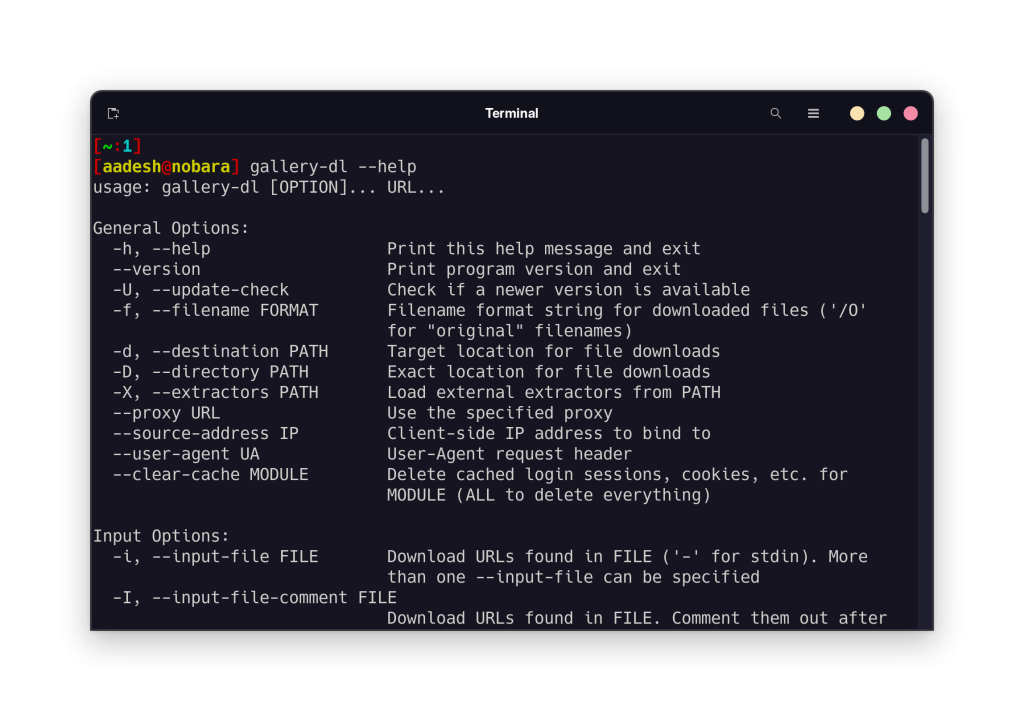
Use the help output when a command from another source does not match your installed release. Do not copy options from an unrelated downloader because similar names can trigger different file or authentication behavior.
Understand how gallery-dl turns a URL into files
gallery-dl first matches the address to a site extractor, which knows how that site represents a profile, post, album, tag search, or individual image. No suitable extractor means this selection step failed before any media request began.
The selected extractor requests page or API data and converts fields such as the account, post identifier, title, sequence number, and extension into a directory and filename. One album address can therefore produce many file messages, while one post can produce several media variants.
Simulation performs the extractor work but does not save the files, and range selection limits which file messages continue through the job.
After a successful download, the archive records the extractor’s item identifier in SQLite and checks that identifier on future runs so the same item can be skipped even if its generated filename or destination changes.
These controls answer different questions. Simulation checks what the extractor intends to do, range limits the current run, the destination selects storage, and the archive prevents a completed item from being saved again.
Preview a supported URL before downloading
Simulation mode runs the extractor and prints the planned filename without saving the media. Range 1 limits the preview to the first matched file, which prevents an album URL from expanding into a large job while you check the extractor.
gallery-dl --simulate --range 1 "https://commons.wikimedia.org/wiki/File:Example.jpg"
The executed command printed one planned filename and exited without creating a download, so replace the example URL only after confirming that the target appears in the supported-sites list and that you have permission to save its media.
Remove the simulation option when the preview names the expected file. The destination option below places the result under a local downloads folder instead of relying on the extractor’s default directory tree.
gallery-dl --range 1 --destination ./downloads "https://commons.wikimedia.org/wiki/File:Example.jpg"
This command saved one 9,022-byte JPEG under the Wikimedia Commons extractor directory, while a normal gallery URL can create several nested folders because gallery-dl uses site metadata to organize the result.
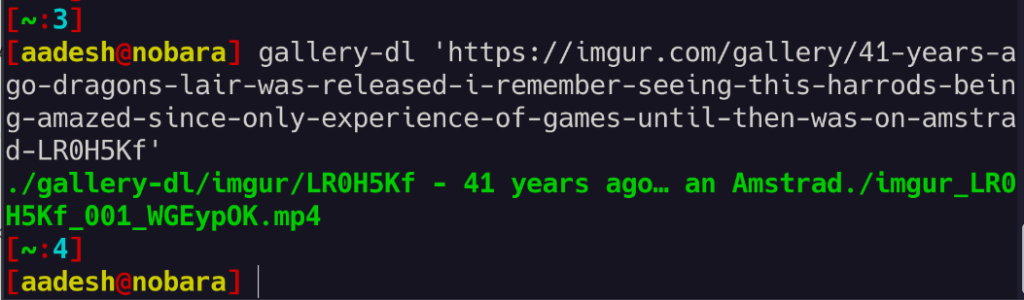
Read the final path before starting another job. Stop and inspect the URL when the extractor selects an unexpected account, tag search, album, or post because the next run can multiply that mistake.
Set a download folder and prevent duplicates
A configuration file removes repeated destination flags and gives completed downloads a durable archive. gallery-dl searches the Linux path shown below, and the archive database records successful items so later runs can skip them.
mkdir -p ~/.config/gallery-dl ~/Downloads/gallery-dl
Create the configuration file at the next path with a text editor, using the Linux file-editing walkthrough for terminal and graphical options if you do not already have a preferred editor.
~/.config/gallery-dl/config.json
Save this JavaScript Object Notation (JSON) object in that file. The base directory controls where new files go, while the SQLite archive stores identifiers rather than the downloaded media.
{
  "extractor": {
    "base-directory": "~/Downloads/gallery-dl",
    "archive": "~/.config/gallery-dl/archive.sqlite3"
  }
}
Validate the JSON before another download, then ask gallery-dl which configuration files it accepted. The first command stops on a missing comma, quote, or brace, while the second marks the discovered file as OK.
python -m json.tool ~/.config/gallery-dl/config.json
gallery-dl --config-status
When the JSON validator reports an error or configuration status does not list the expected path, fix the file before repeating a one-item simulation to confirm the new destination and archive behavior.
Use browser cookies only when a site requires login
Some extractors can read cookies from an existing Chromium, Firefox, or Safari profile. This avoids placing a username and password in shell history or a plain configuration file, but the command receives the same access as the logged-in browser session.
gallery-dl --cookies-from-browser firefox --simulate --range 1 "https://commons.wikimedia.org/wiki/File:Example.jpg"
Replace the Wikimedia Commons address with a supported page that your Firefox profile can open, keep simulation enabled until the extractor selects the intended content, close Firefox if its cookie database is locked, and never share copied cookie files because they can grant account access.
Authentication does not override site rules, copyright, privacy, or access controls. Stop when a site blocks automated requests, requires a challenge gallery-dl cannot complete, or excludes the requested use.
Update gallery-dl and diagnose failures
Because site extractors change when websites change their markup or application programming interfaces (APIs), activate the same virtual environment and upgrade the stable package before treating an extractor error as a configuration fault.
cd ~/gallery-dl
source .venv/bin/activate
python -m pip install --upgrade gallery-dl
gallery-dl --version
- No suitable extractor means the URL format is unsupported or does not match the expected site address.
- An authentication error means the extractor needs credentials, browser cookies, an OAuth flow, or a fresh session.
- A challenge or rate-limit response means you should stop repeated requests and follow the site’s access rules.
- Unexpected filenames or folders mean you should return to simulation mode and inspect the selected extractor.
- Repeated files mean the archive path is missing, unwritable, or not loaded by the active configuration.
Run one controlled URL after each change instead of retrying a complete collection. That keeps the failure surface small and shows whether the package, extractor, authentication, or configuration caused the result.
Frequently asked questions
These answers cover the decisions that commonly affect the next gallery-dl run, and the project documentation should stay beside them because supported sites and extractor requirements can change.
Where does gallery-dl save files on Linux?
Without an override, each extractor chooses a directory structure under the current working directory. Set extractor.base-directory in ~/.config/gallery-dl/config.json or pass –destination for a specific run.
How do I update gallery-dl in a virtual environment?
Return to the environment folder, activate .venv, run python -m pip install –upgrade gallery-dl, and confirm the result with gallery-dl –version.
Why does gallery-dl report no suitable extractor?
The URL may use an unsupported site, an unexpected address format, or a page type that the site extractor does not handle. Check the current supported-sites list and test the exact page with simulation mode.
Finish with one controlled download
Keep simulation mode, a one-item range, a dedicated destination, and an archive in your normal workflow. Remove the limits only after the preview identifies the intended collection and you have permission to download it.