
I checked Ubuntu’s service ownership and the read-only interface, route, and resolver commands before writing this guide. You get the matching command for NetworkManager, systemd-networkd, Netplan, or one interface, followed by checks that show whether the route and DNS returned too.
Why Ubuntu has more than one networking restart path
Ubuntu 24.04.4 LTS, also called Noble Numbat, uses Netplan as a configuration layer. Netplan hands the configuration to a renderer, usually NetworkManager on a desktop or systemd-networkd on a server.
Ubuntu’s Netplan explanation and the official Noble release page document that release and configuration model.
That ownership decides what you should restart, while the old networking.service command belongs to the ifupdown model and can end with “Unit networking.service not found” on a current Ubuntu installation.
Before you touch a live connection, check the backend and the interface, then use the Linux IP and DNS guide when the interface has an address but the application still cannot reach a name.
What you need before running a command
You need a shell with sudo access and the name of the interface you intend to inspect. Keep a second session or console available when working over SSH, because restarting a manager or applying a bad configuration can interrupt the session carrying the command.
- Check the owner with netplan status and the service list below.
- Record the interface name with ip -br link show.
- After every change, verify link state, address, route, and DNS separately.
netplan status
systemctl list-units --type=service | grep -E 'NetworkManager|systemd-networkd'
ip -br link show
Netplan status can show the backend managing an interface. If you are diagnosing name resolution, keep the Linux DNS guide nearby because a working route and a working resolver are separate checks.
The restart methods, in the order I use them
The owner check comes first because the same word, “networking,” can point to different services and configuration layers.
Check the active owner before restarting anything
Run the read-only checks first because a server normally reports systemd-networkd.service, while an Ubuntu desktop normally reports NetworkManager.service.
systemctl is-active systemd-networkd
systemctl is-active NetworkManager
netplan status
Restart systemd-networkd on a server
Use this when systemd-networkd owns the interface, understanding that restarting its link-configuration service can interrupt every interface managed by it.
sudo systemctl restart systemd-networkd.serviceCheck the result before starting another repair, using the ss and netstat reference if the network is up but a service still does not accept connections.
Restart NetworkManager on a desktop
Use this when NetworkManager owns the connection. Restarting the manager can disconnect active desktop connections, VPNs, and remote sessions, so save work and prefer a local console when the machine is remote.
sudo systemctl restart NetworkManager.serviceDo not use this command merely because the word “network” appears in the problem. Confirm the service is active first, then inspect the connection and route after it returns.
Reapply Netplan, or test it with a rollback
Use Netplan when you changed a YAML file under /etc/netplan/ or need to regenerate the backend configuration. netplan apply applies the saved configuration immediately.
sudo netplan applyFor a remote change, start with netplan try. It applies the candidate configuration and waits for confirmation, rolling back after 120 seconds when you do not confirm, which gives an SSH session a recovery path.
The Netplan CLI reference documents apply, while the Netplan try reference documents its confirmation and rollback behavior.
sudo netplan tryUse netplan try for a configuration you are testing, not as a replacement for checking the YAML. The Linux file-editing guide covers safe command-line editing habits before you alter a Netplan file.
Toggle a NetworkManager connection with nmcli
On a NetworkManager system, nmcli can control networking without restarting the entire service. First list connections so you use the connection profile name rather than guessing it.
nmcli connection show
nmcli networking off
nmcli networking on
nmcli networking off disables networking managed by NetworkManager, so it can drop the SSH session that runs it. For a narrower action, bring one named profile down and up with nmcli connection down id “PROFILE” followed by nmcli connection up id “PROFILE”.
These subcommands are defined in the NetworkManager nmcli reference.
Reset one interface with ip link
Use ip link when one interface is stuck and you understand the session risk. Replace INTERFACE with the actual device name, and never take down the interface carrying your only SSH path unless you have console access.
sudo ip link set dev INTERFACE down
sudo ip link set dev INTERFACE up
This changes the link state, not the Netplan file or the DHCP lease. Check the address and route afterward because a link can be up while the interface still lacks usable addressing.
The older ifconfig reference explains the legacy tool, but ip is the command used in this workflow and is the better fit for current Ubuntu diagnostics.
Which method should you pick
Pick the smallest scope that matches the failure because a backend restart affects that manager, Netplan changes configuration, and ip link touches one device without fixing a wrong YAML file.
| Situation | Use | Risk or boundary |
|---|---|---|
| systemd-networkd owns the server interface | sudo systemctl restart systemd-networkd.service | May interrupt all networkd-managed links |
| NetworkManager owns the desktop connection | sudo systemctl restart NetworkManager.service | Disconnects active profiles and sessions |
| Netplan YAML changed over SSH | sudo netplan try | Confirm within 120 seconds or it rolls back |
| One NetworkManager profile is wrong | nmcli connection down/up | Requires the profile name and NetworkManager |
| One link needs a state reset | sudo ip link set dev INTERFACE down/up | Can cut the session using that interface |
When the failure is only DNS, restarting a network manager may be unnecessary, so check resolver state first and use the dig command guide for a focused DNS lookup.
When the network does not come back
Start with the interface, then move outward. This separates a physical or link-state problem from missing addressing, routing, and name resolution.
ip -br link show INTERFACE
ip addr show INTERFACE
ip route show default
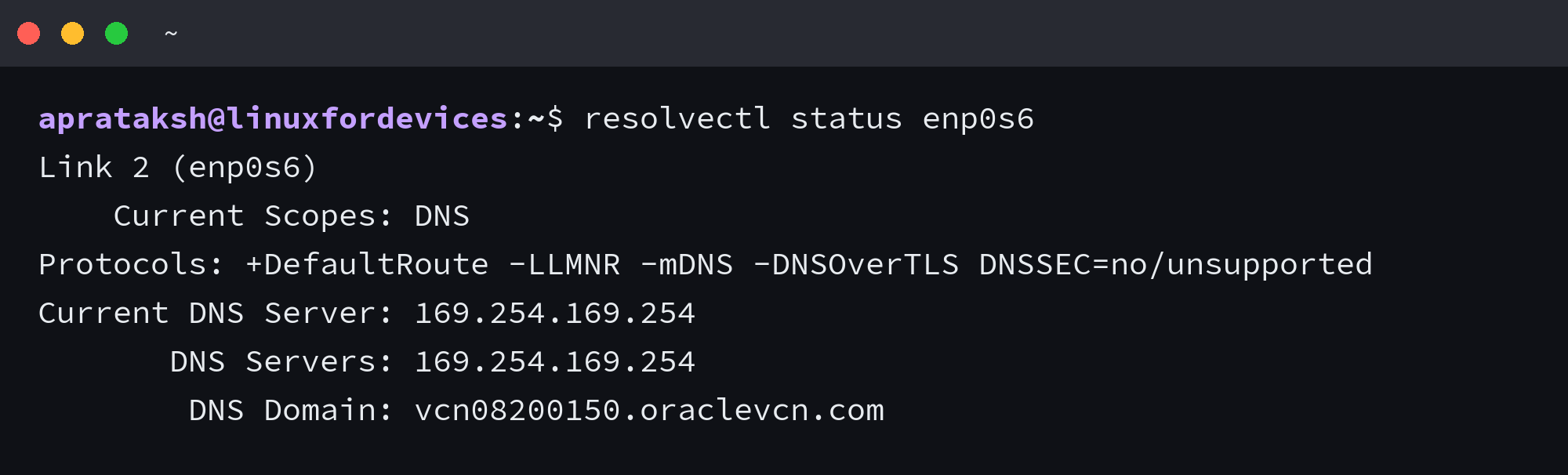
resolvectl status INTERFACE
An interface marked UP with an address but no default route points to a routing or DHCP problem. A route with a DNS failure points to the resolver path instead, so do not keep restarting the link blindly.
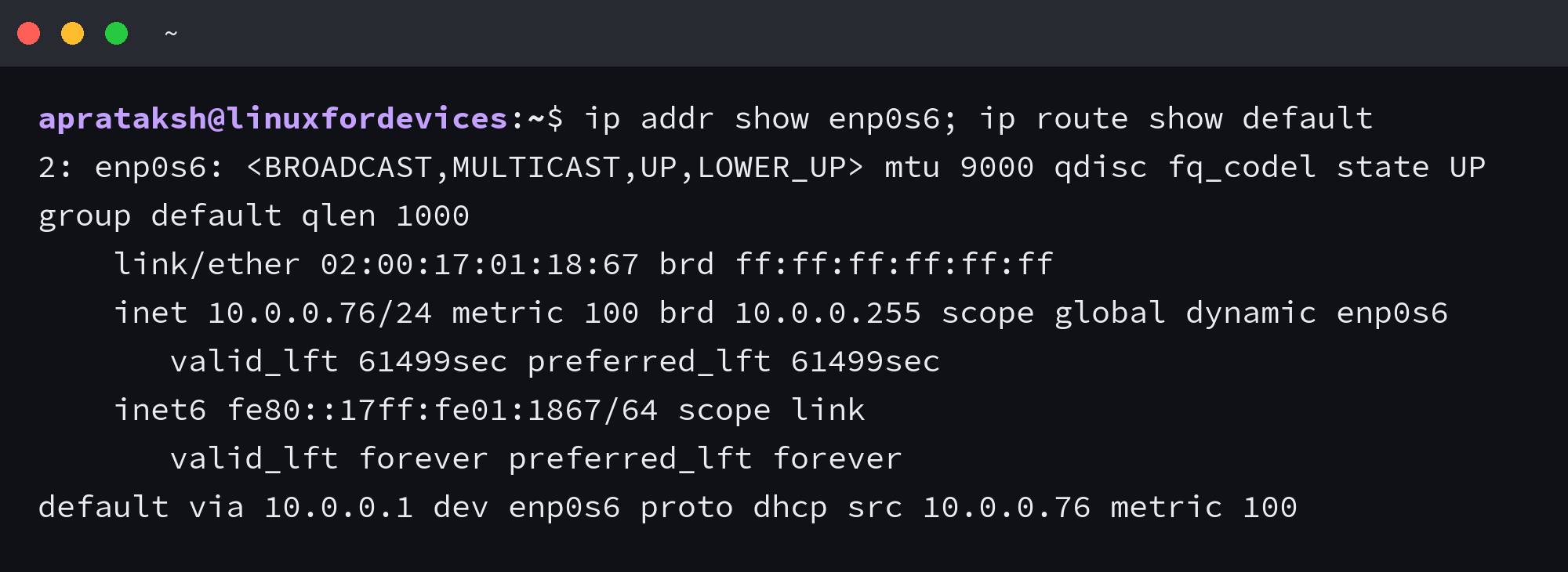
Read the relevant service log when the manager failed to configure the device.
journalctl -u systemd-networkd --no-pager -n 30
journalctl -u NetworkManager --no-pager -n 30
If the link and route are present but names fail, inspect the resolver assigned to that link. The DNS screenshot shows the separate state that resolvectl status exposes.
A “Unit not found” error for networking.service is a service-owner mismatch, not proof that Ubuntu has no networking. Check the active renderer and use its unit, or use Netplan when the configuration file is the thing you changed.
The short version
Identify the owner first, choose the narrowest matching method, and verify the link, address, default route, and DNS in that order. On a remote machine, netplan try is the safer choice for a configuration change because it provides a timed rollback.
Common questions
The commands differ because Ubuntu separates configuration from the daemon that applies it. These answers keep the service choice and the session risk visible.
Why does sudo systemctl restart networking.service say Unit not found
Current Ubuntu installations commonly use systemd-networkd or NetworkManager instead of the legacy networking.service unit. Check the active owner with systemctl is-active and netplan status, then restart the matching service or use netplan apply for a configuration change.
How do I restart networking without dropping SSH
Use a local console when possible and choose the smallest action. For a Netplan configuration change, netplan try provides a 120-second confirmation window and rolls back when you do not confirm, while restarting the manager or taking down the SSH interface can disconnect the session.
What is the difference between netplan apply and netplan try
netplan apply applies the saved Netplan configuration immediately. netplan try applies a candidate configuration temporarily and rolls it back after 120 seconds unless you confirm it.
Do I need to reboot after changing a Netplan file
No. Use netplan try to test a remote change or netplan apply to apply a saved configuration, then verify the interface, address, route, and resolver. A reboot is not required for Netplan to hand the configuration to its renderer.
Does service networking restart still work on Ubuntu 24.04
The legacy service networking restart and /etc/init.d/networking paths can fail because current Ubuntu does not use networking.service as the universal owner. Use systemd-networkd, NetworkManager, Netplan, or ip link according to the active backend and the scope of the problem.