

A port is only open when a process is listening on it. Here you will list every listening socket, see which process holds it, and check if it is reachable from outside.
What “open port” actually means on Linux
An open port is a port number with a process in LISTEN state on an IP and port. No process calling bind() and listen() means no open port, even if /etc/services lists that number.
Two states get mixed up constantly. Listening means a local process is waiting for connections on an address and port. Established means a connection is active between two endpoints. When you hunt for open ports you want the listening set — that is the attack surface and the source of address already in use errors. I verified the commands below on Ubuntu 24.04 (iproute2 with ss preinstalled).
1. List every listening port with ss -tuln
Do ss -tuln to get the full listening picture in one command. It is the fastest check on every modern distro — ss ships with iproute2 and reads directly from netlink, while netstat needs the net-tools package that is not even installed on minimal Ubuntu images.
ss -tuln
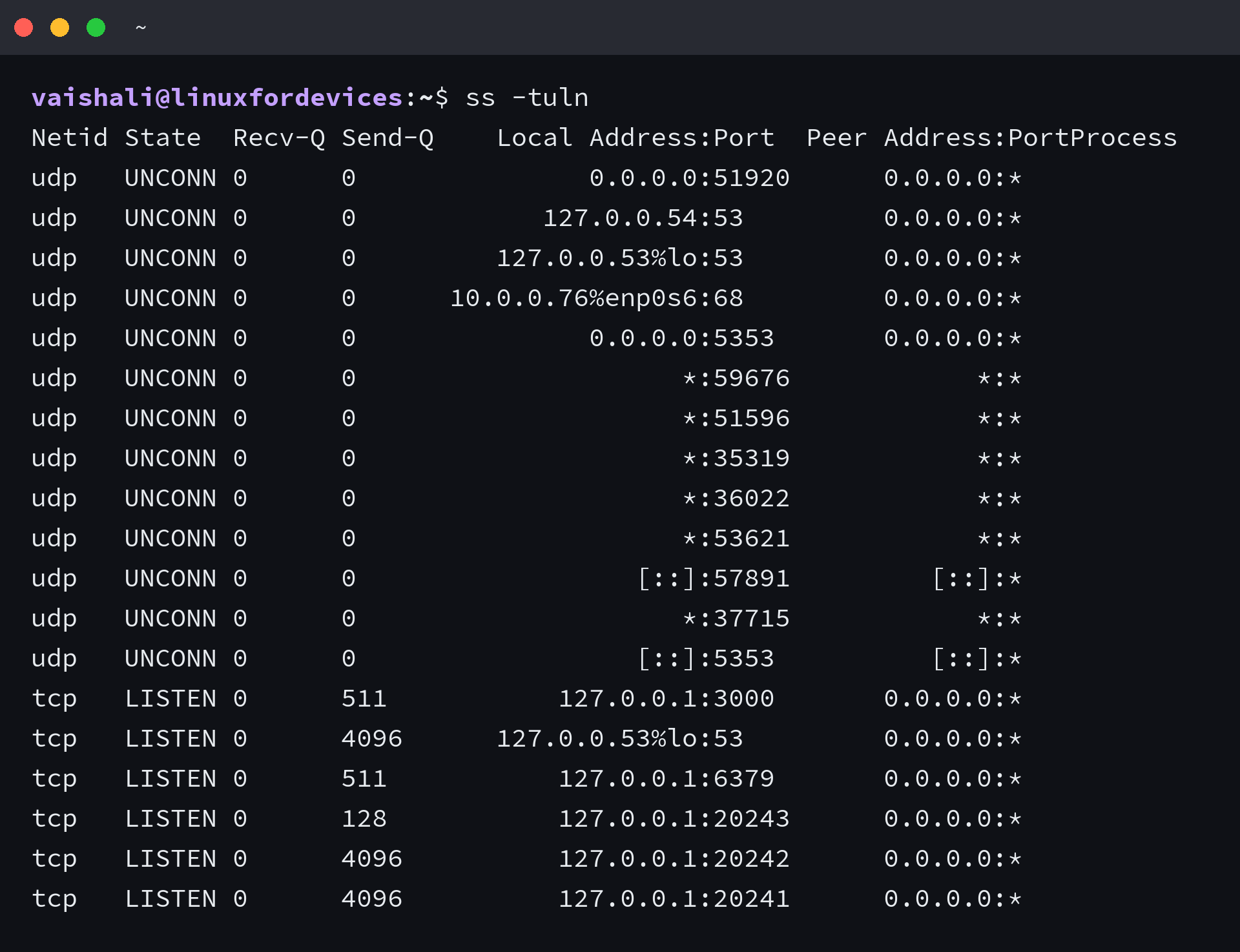
On this host it returned about a dozen sockets — TCP lines show LISTEN, UDP lines show UNCONN (UDP has no connection state, so that is normal for DNS and mDNS). Read the Local Address:Port column carefully: 127.0.0.1:5432 is localhost-only, 0.0.0.0:22 is all IPv4 interfaces, [::]:22 is all IPv6 interfaces. A service bound to 127.0.0.1 will never be reachable from another machine, and that is a bind-address issue, not a firewall issue.
Flags you will use daily:
-tTCP,-uUDP-llistening sockets only-nnumeric addresses and ports (avoids DNS stalls)-powning process — needs sudo to see other users’ sockets
For a narrower view, use ss -tln for TCP LISTEN only or ss -uln for UDP UNCONN only. I ran all three back to back and the counts split predictably — TCP and UDP subsets that add up to the combined ss -tuln view.
2. See which process holds a port
Do sudo ss -tulnp or sudo lsof -i -P -n to map each listening port to its PID. Seeing the port is half the job — the next question is always which process blocks the restart.
sudo ss -tulnp | head -20
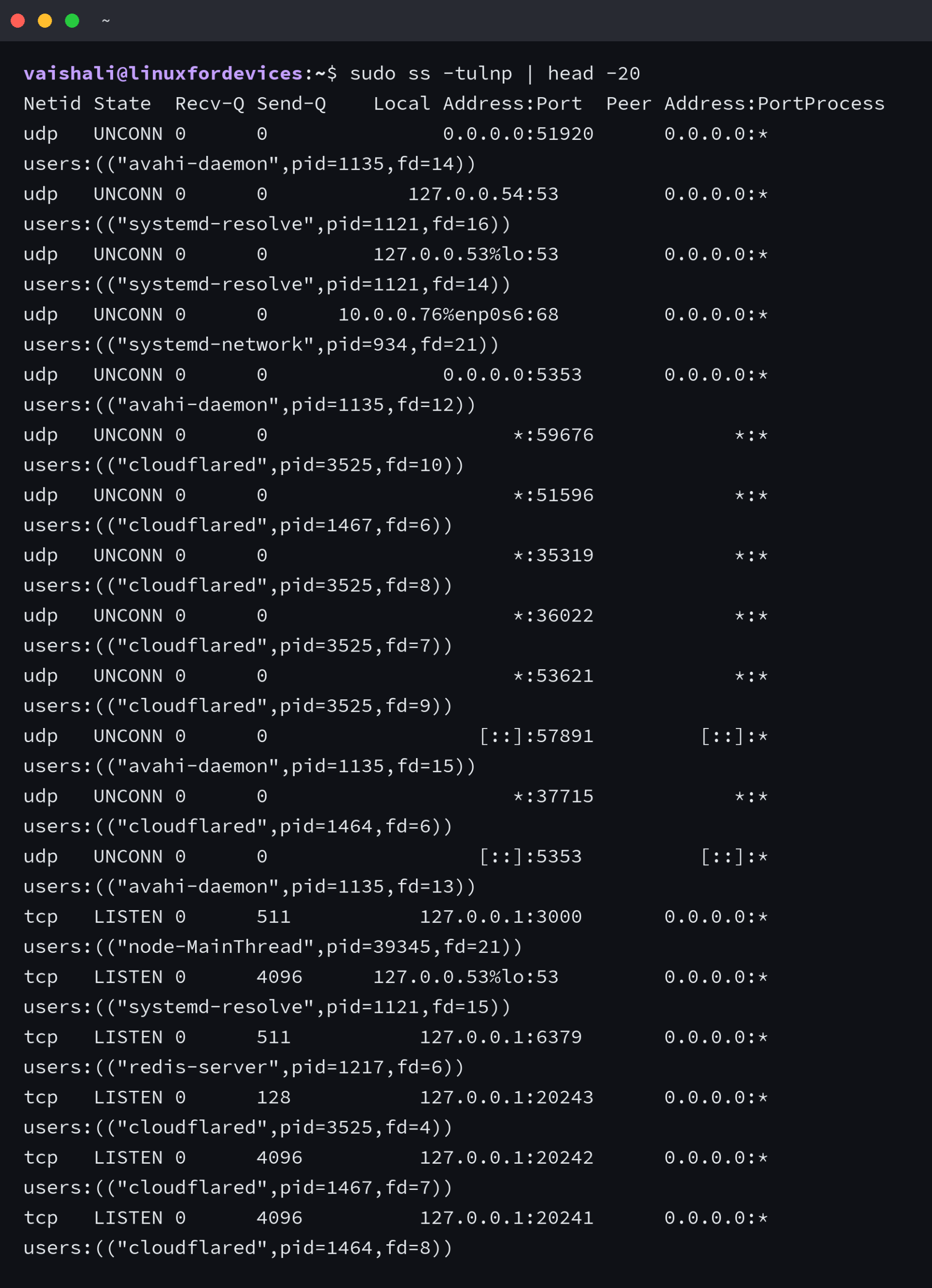
Without sudo the last column stays empty for sockets owned by other users — I confirmed this by running the same command with and without sudo. With sudo, every listening line shows its PID and command name. That is the workflow you will use constantly: confirm what is listening, then chase the PID if you need to restart or reconfigure it.
sudo lsof -i -P -n | grep LISTEN
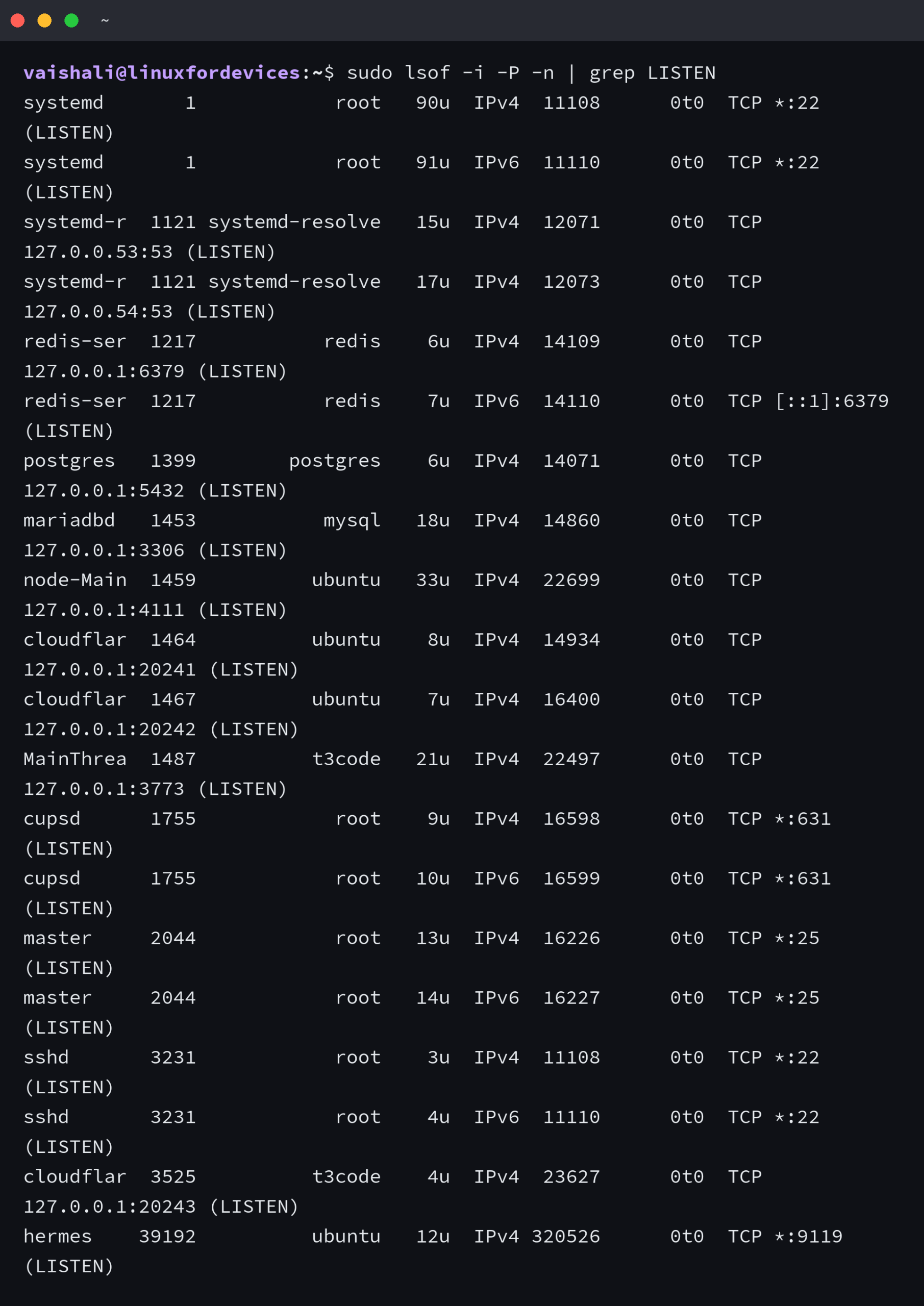
lsof -i -P -n gives the same answer from a different angle. -i selects Internet sockets, -P keeps ports numeric (so 5432 stays 5432 instead of becoming postgres), -n skips DNS. On this machine it showed systemd on :22, postgres on 127.0.0.1:5432, and redis on 6379 — each with its real PID. I ran both tools side by side and they agreed on every listening port. Use whichever is installed, but prefer ss -p when you already live in ss.
sudo lsof -i :5432 -P -n
To chase a single port, pass it directly. lsof -i :5432 -P -n returned one line for postgres here — exactly the evidence you hand a teammate when you say stop postgres before starting a new build. If nothing prints, nothing is listening there.
3. Check a specific port and if it is reachable
Do a filtered ss check plus a reachability probe to confirm a single port is both listening locally and reachable from the network. Local listening is not enough — a localhost-only bind or a firewall can still block it.
ss -tlnp 'sport = :5432'
Use the built-in ss filter for exact matches. ss -tlnp 'sport = :5432' asks whether anything is listening on 5432 without the grep trap where :22 also matches :2222. I ran ss -tlnp 'sport = :22' and saw sshd holding 0.0.0.0:22 and [::]:22 — bound on both stacks. For two ports at once, use ss -tuln '( sport = :80 or sport = :443 )'.
nc -zv localhost 5432
Then probe reachability locally with nc. nc -zv localhost 5432 does a zero-I/O connect scan and prints succeeded or Connection refused. On this host it succeeded for 5432 and correctly refused a random high port. For a network view — what a remote host would actually see — use nmap:
sudo nmap -sT -F localhost
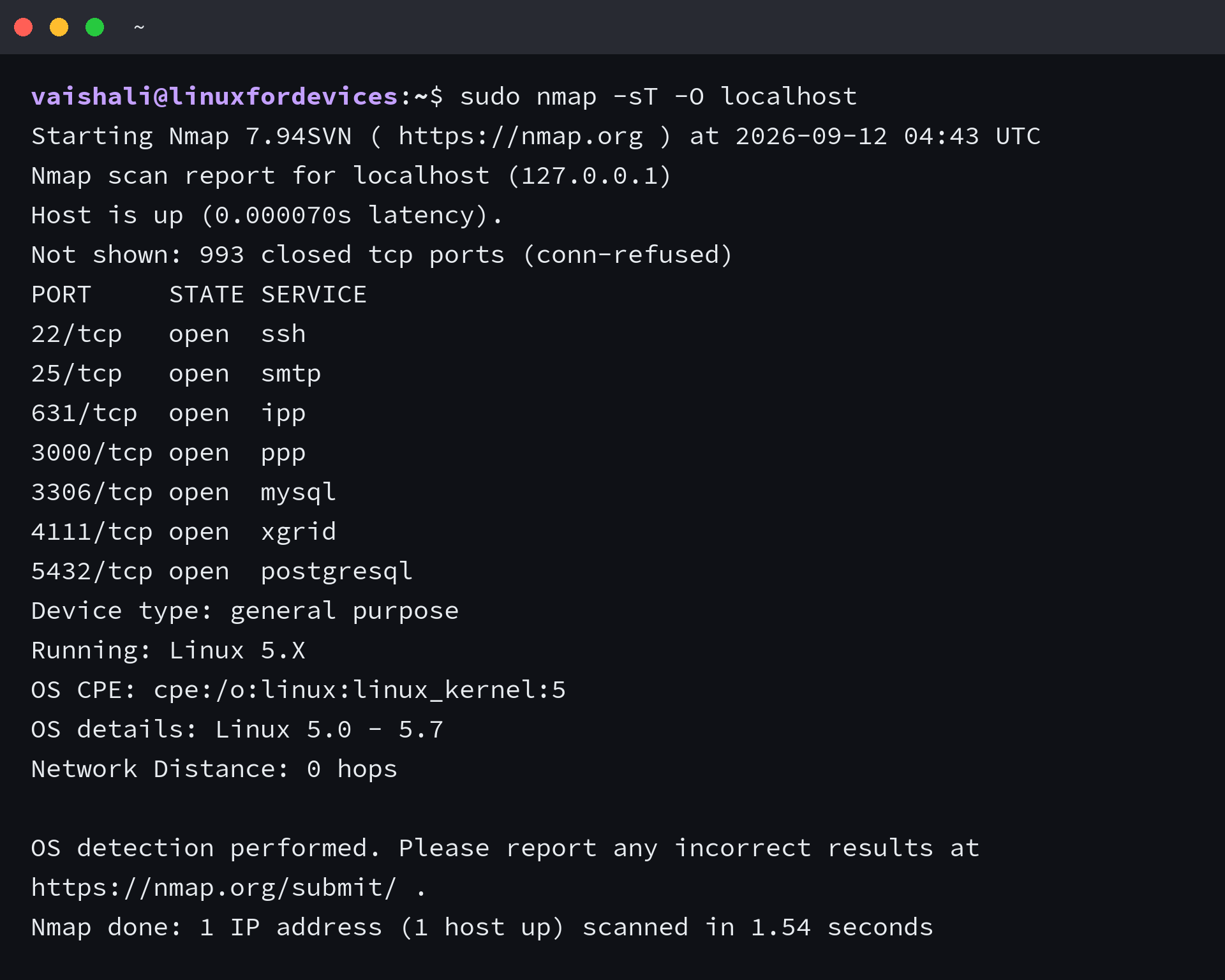
-sT does a TCP connect scan that works without raw sockets, -F scans the top 100 ports for a fast answer. On this machine the nmap result matched ss -tln exactly — seven open TCP ports. If ss shows 0.0.0.0:5432 but nmap from another host says filtered, the port is firewalled — check sudo ufw status or iptables, not the app log. If ss shows only 127.0.0.1:3000, fix the service config to bind 0.0.0.0 and re-run ss to confirm.
Quick reference I keep: ss -tuln for the full local picture, sudo ss -tulnp or lsof -i :PORT for the owning PID, ss -tlnp 'sport = :PORT' plus nc -zv or nmap -F for reachability. Three commands isolate the problem — no log tailing needed. In development, sudo lsof -ti :3000 | xargs -r kill -9 frees a stuck port fast; in production, restart the owning service instead so you do not orphan a supervisor.