

The zip and unzip commands are separate programs, and the one that packs your files returns exit code 0 whether or not it stored anything.
That is how you can run zip plain.zip project, read the single line adding: project/ (stored 0%), and finish with an archive that holds no files. I ran the whole set on Ubuntu 24.04.4 against zip 3.0 and unzip 6.00, and the output shown is what those runs returned.
Every example below is followed by the listing that shows what the archive contains, so you can tell a packed archive from an empty one before you send it.
Zip and unzip are two packages, and the archive only holds what you name
Both tools come from Info-ZIP and both install as separate binaries. A machine can carry zip without unzip, and the other way round.
An archive is a container with a table of entries, and each entry stores a path, a length, a timestamp, and either compressed bytes or the original bytes.
The method is chosen per entry. Deflate is the default and shortens text, while the stored method copies bytes unchanged, which is why files that are already compressed show up as stored.
Nothing enters that table unless a name you pass on the command line reaches it, and that one rule explains most of what surprises people about zip.
sudo apt install zip unzip
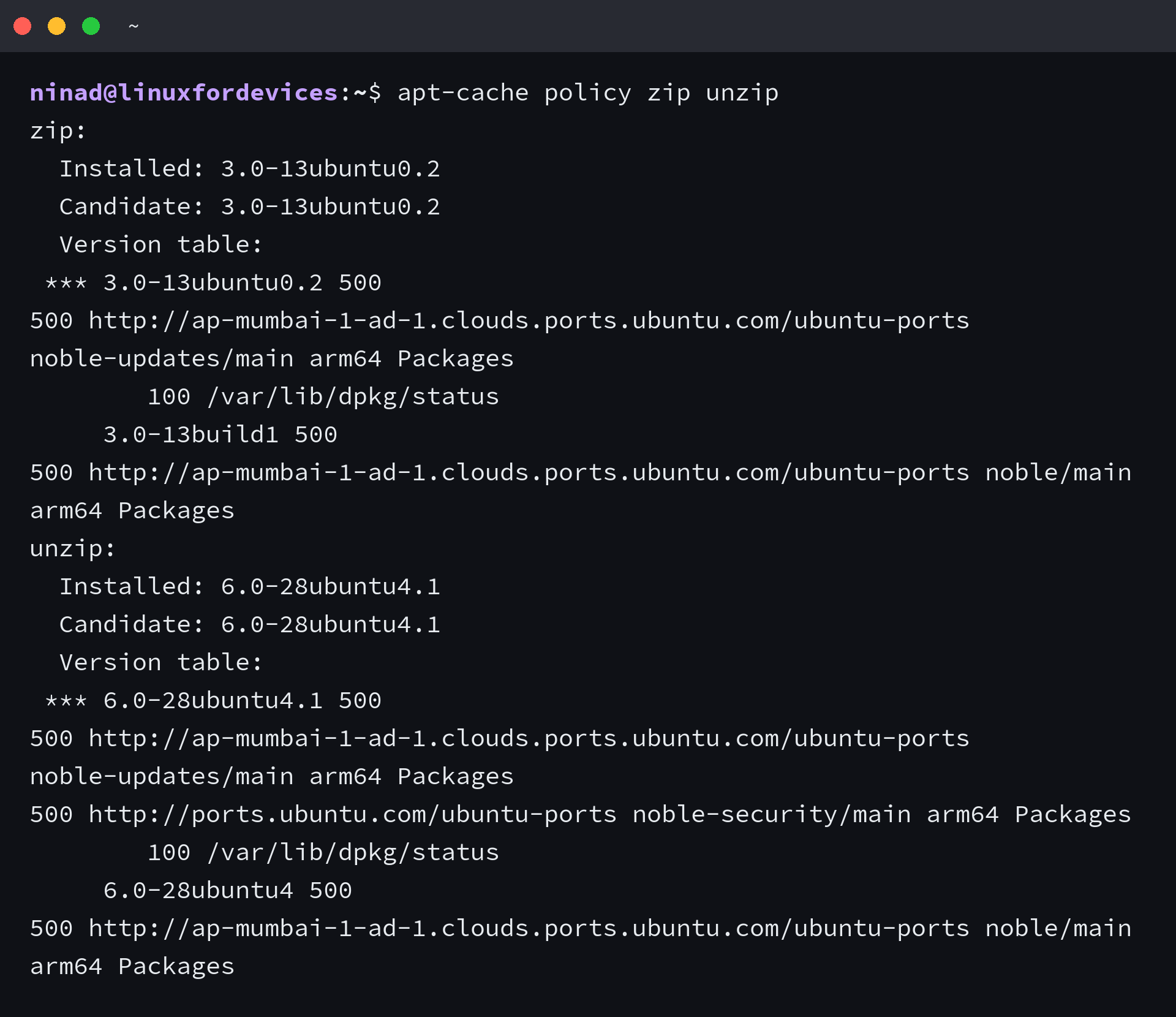
Check which build your distribution resolved to, because the options below are described against the packages that ship with the current Ubuntu LTS. I ran apt-cache policy zip unzip and this system resolved to the two versions below.
apt-cache policy zip unzip
What you need before the first archive
The install is the only step that needs root. Everything after it runs as an ordinary user inside a directory you already own.
- zip 3.0 and unzip 6.0 or newer, which the current Ubuntu, Debian, and Fedora releases all ship
- write permission on the directory where the archive is created
- write permission on the extraction directory, which is a different place once you pass -d
- a folder with a few files in it
Permission is the requirement that fails in practice, because a directory you can read is not always a directory you can write, and the chmod command is what changes those bits when the target belongs to you.
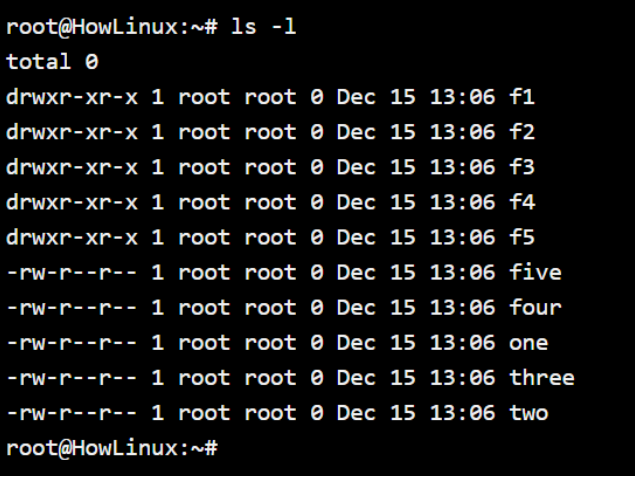
The fixture below builds a small project tree with a file in each folder. It is small enough to check by eye and nested enough to show whether recursion happened.
mkdir -p project/notes project/assets
printf 'print("hello from app")\n' > project/app.py
printf 'first note\n' > project/notes/todo.txt
printf 'a,b,c\n1,2,3\n' > project/assets/data.csv
Directories and files are stored as separate entries, so a listing of your practice set is the baseline the archive should match.
Create an archive that actually contains your files
The shape of the command never changes. The archive name comes first, then the names you want inside it, and the second group decides what the table holds.
Zip one file
Pass one file and you get one entry with its own length and its own method.
zip app.zip project/app.py
  adding: project/app.py (stored 0%)
The adding line names the entry as it lands, and the percentage is the space that compression saved on that particular file.
Zip a folder and everything under it
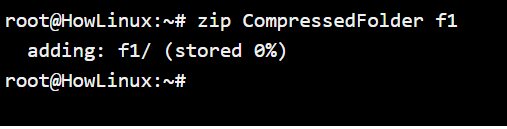
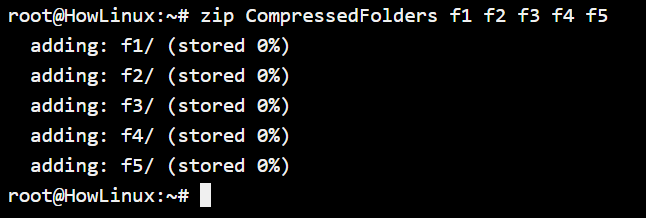
A folder needs the recursion flag, because a directory name on its own is one name and therefore one entry.
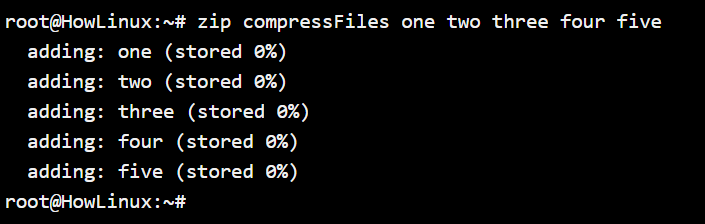
zip -r project.zip project
  adding: project/ (stored 0%)
  adding: project/app.py (stored 0%)
  adding: project/assets/ (stored 0%)
  adding: project/assets/data.csv (stored 0%)
  adding: project/notes/ (stored 0%)
  adding: project/notes/todo.txt (stored 0%)
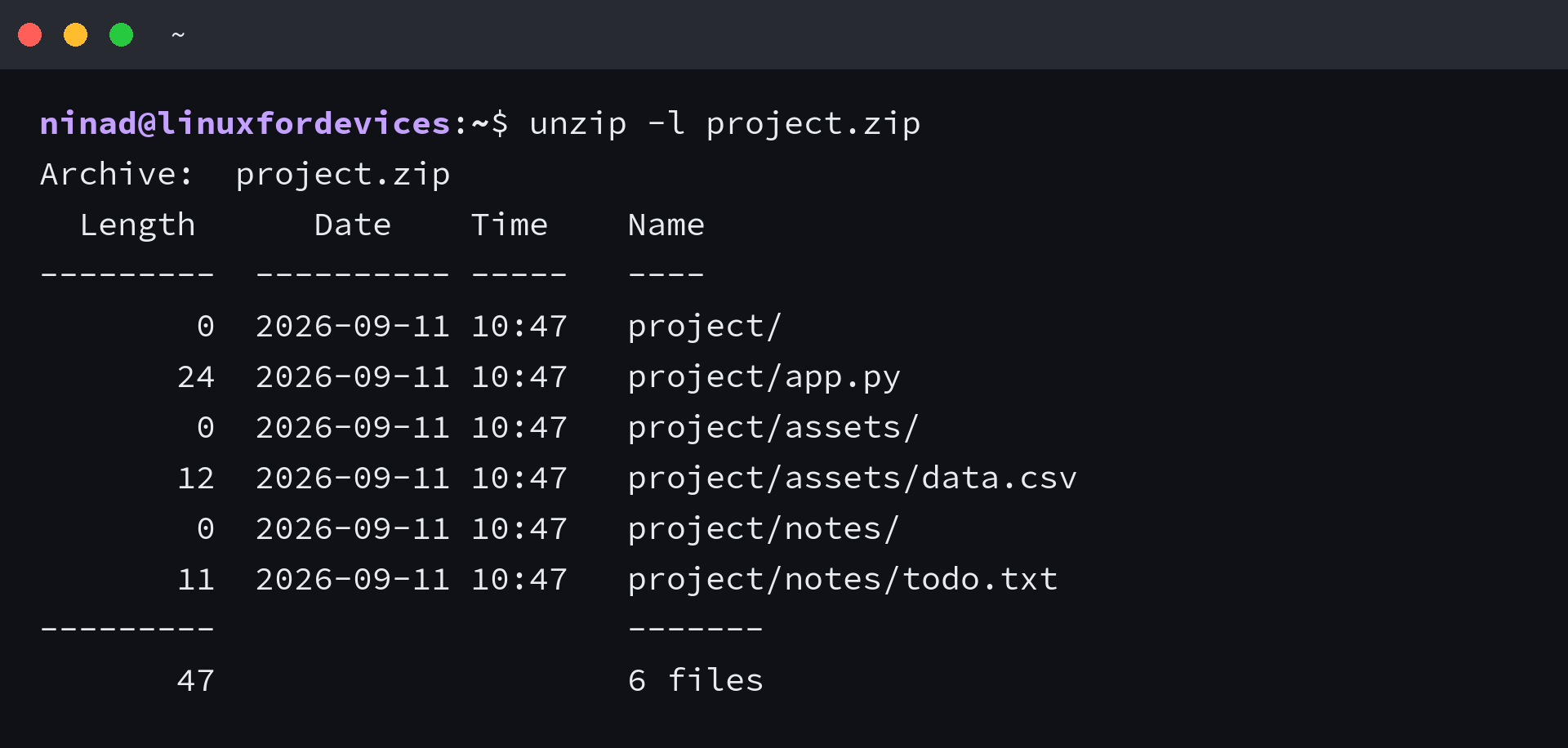
Read the entries back with unzip -l and the length column is the proof that the walk happened.
unzip -l project.zip
Archive:  project.zip
  Length      Date    Time    Name
---------  ---------- -----   ----
        0  2026-09-11 10:47   project/
       24  2026-09-11 10:47   project/app.py
        0  2026-09-11 10:47   project/assets/
       12  2026-09-11 10:47   project/assets/data.csv
        0  2026-09-11 10:47   project/notes/
       11  2026-09-11 10:47   project/notes/todo.txt
---------                     -------
       47                     6 files
What a missing -r leaves behind
Drop the flag and the command still exits cleanly. What it stores is the folder name and nothing beneath it.
zip plain.zip project
  adding: project/ (stored 0%)
unzip -l plain.zip
Archive:  plain.zip
  Length      Date    Time    Name
---------  ---------- -----   ----
        0  2026-09-11 10:47   project/
---------                     -------
        0                     1 file
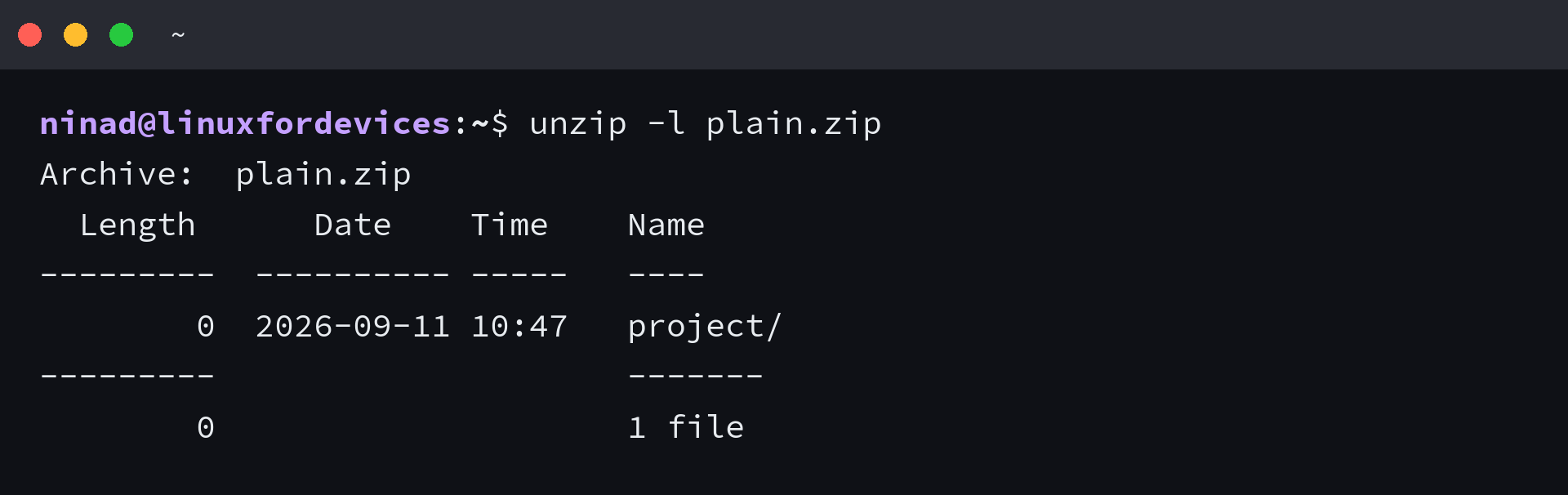
I ran that pair on Ubuntu 24.04.4 and the archive came back with exactly one entry of zero length at exit code 0, which is why the failure survives a quick look at the terminal.
The folder name is stored as an entry in its own right, so the listing looks plausible until you read the length column.
Pack the contents without the parent folder
Keeping the folder name is usually what you want, because the archive then unpacks into a tree instead of scattering files into the directory above it.
When the contents should sit at the root of the archive, change into the directory first and pass a dot.
cd project && zip -r ../contents.zip .
Archive:  ../contents.zip
  Length      Date    Time    Name
---------  ---------- -----   ----
       24  2026-09-11 10:47   app.py
        0  2026-09-11 10:47   assets/
       12  2026-09-11 10:47   assets/data.csv
        0  2026-09-11 10:47   notes/
       11  2026-09-11 10:47   notes/todo.txt
---------                     -------
       47                     5 files
The dot also reaches hidden files. A plain asterisk does not, so a folder that keeps its settings in a dotfile loses them from the archive.
Quiet the adding lines
The -q option removes the per-file lines, which is what you want when an archive holds hundreds of entries and the exit status is the only thing you read.
zip -q -r project.zip project

Look inside an archive and extract it
You will unpack more archives than you pack, and most of them arrive from somewhere else. Inspection comes first because it tells you what extraction is about to write.
Inspect an archive without extracting it
Verbose mode adds the compression method, the stored size, and the CRC-32 checksum for every entry.
unzip -v project.zip
 Length   Method    Size  Cmpr    Date    Time   CRC-32   Name
--------  ------  ------- ---- ---------- ----- --------  ----
       0  Stored        0   0% 2026-09-11 10:47 00000000  project/
      24  Stored       24   0% 2026-09-11 10:47 8058b3da  project/app.py
       0  Stored        0   0% 2026-09-11 10:47 00000000  project/assets/
      12  Stored       12   0% 2026-09-11 10:47 bbbbb379  project/assets/data.csv
       0  Stored        0   0% 2026-09-11 10:47 00000000  project/notes/
      11  Stored       11   0% 2026-09-11 10:47 f3f5d60a  project/notes/todo.txt
--------          -------  ---                            -------
      47               47   0%                            6 files
When only the names matter, for a script or a quick check, unzip -Z1 prints one stored path per line with no table around it. It is the form to use inside a loop.
unzip -Z1 project.zip
project/
project/app.py
project/assets/
project/assets/data.csv
project/notes/
project/notes/todo.txt
Extract into the current directory or one you name
With no options, unzip writes every entry into the current directory and recreates the stored subdirectories underneath it.
unzip project.zip
Archive:  project.zip
  extracting: project/app.py
  extracting: project/assets/data.csv
  extracting: project/notes/todo.txt
The -d flag sends the whole tree somewhere else, which is the flag to reach for when the archive would otherwise drop its contents into your home directory.
unzip project.zip -d out
Archive:  project.zip
 extracting: out/project/
 extracting: out/project/app.py
 extracting: out/project/assets/
 extracting: out/project/assets/data.csv
 extracting: out/project/notes/
 extracting: out/project/notes/todo.txt
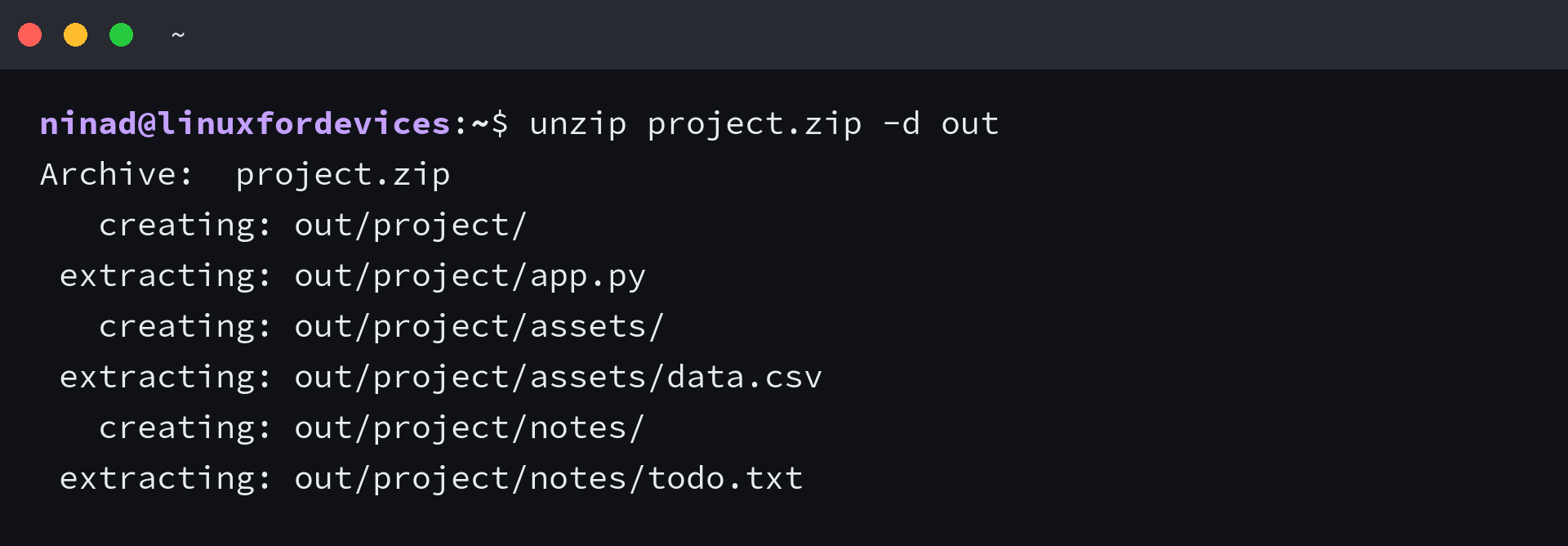
The df command shows how much room that target filesystem has. That matters because unzip keeps writing until it runs out of space and then stops partway.
Archives also arrive as tarballs, bzip2 files, and older compress files, and extract all compressed files with a single command covers a folder full of mixed formats.
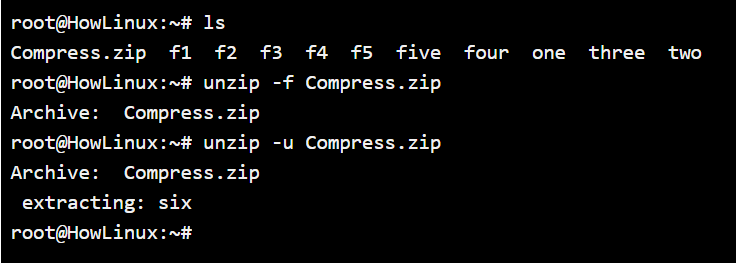
Decide what happens to files that already exist
The default is to ask before overwriting, one file at a time. That question is the reason an unattended script hangs.
| Flag | Behaviour on an existing file |
|---|---|
| (none) | asks before each file, and waits for an answer |
| -o | overwrites without asking |
| -n | skips files that already exist and creates nothing new |
| -f | replaces files that are newer than the copy on disk, adds nothing |
| -u | does that and creates the files missing from disk |
Answering a at the replace prompt applies that answer to every remaining file. The run finishes without further questions.
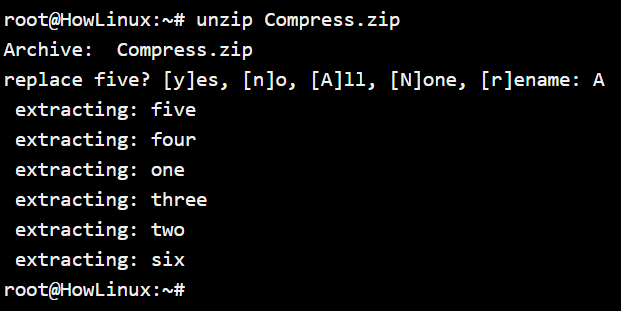
Quiet mode does not silence that prompt. It removes the file list, and the question still waits for input.

With no terminal attached, the prompt reads end of file, unzip treats that as no, and the command exits with status 1. I tried it with the input closed and the archive was left exactly as it was.
When the target directory refuses the files
A directory you can read is not always a directory you can write, and unzip reports each path it cannot create instead of stopping at the first one.
unzip project.zip -d ro
Archive:  project.zip
checkdir error:  cannot create ro/project
                 Permission denied
                 unable to process project/.
checkdir error:  cannot create ro/project
                 Permission denied
                 unable to process project/app.py.
I tested the same command against a read-only target, and every entry failed the same way. The status came back as 2 while the archive itself is fine, and the exit code is the signal worth reading.
Once the files land correctly and you have several archives to handle, the same flags work across a list of them. The unzip multiple files walkthrough covers that loop.
Exclude entries, delete them, or update the archive in place
An archive is not fixed once it is written. The options below change what is inside an existing file without rebuilding it from the original folder.
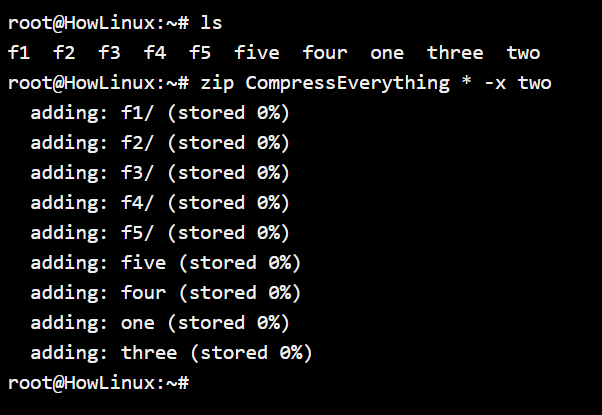
Leave names out with -x
The exclude list matches the names on the command line, and it takes more than one entry, so a single flag covers several paths.
zip -r filtered.zip project -x 'project/notes/*'
  adding: project/ (stored 0%)
  adding: project/app.py (stored 0%)
  adding: project/assets/ (stored 0%)
  adding: project/assets/data.csv (stored 0%)
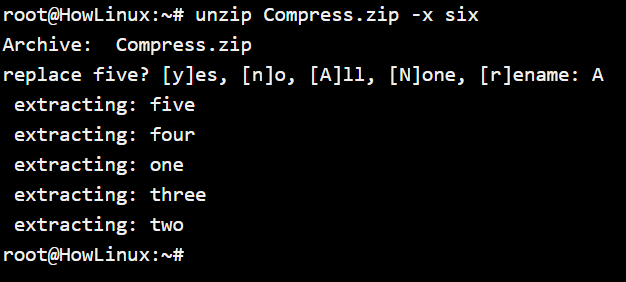
unzip takes the same flag, and there it matches the entry names stored in the archive rather than files on disk.
unzip project.zip -x 'project/assets/*' -d ex
Archive:  project.zip
   creating: ex/project/
 extracting: ex/project/app.py
   creating: ex/project/notes/
 extracting: ex/project/notes/todo.txt
Delete an entry with zip -d
Deleting removes the entries whose names match and rewrites the archive around what is left, so the stored paths are what the list sees.
zip -d trim.zip 'project/assets/*'
deleting: project/assets/
deleting: project/assets/data.csv
That letter does double duty across the pair and the two meanings have nothing in common. In zip it deletes entries, and in unzip it names the directory to extract into.
Freshen or update without rebuilding
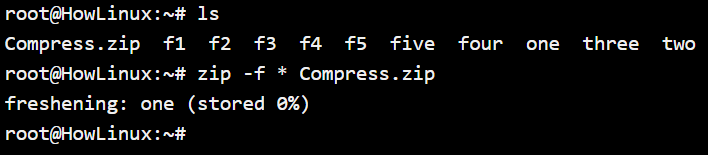
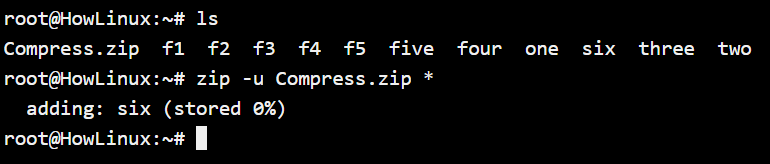
Two modes cover the case where the archive is behind the folder. Freshen replaces entries that changed, and update also adds the files the archive is missing.
zip -f project.zip project/notes/todo.txt
freshening: project/notes/todo.txt (stored 0%)
zip -u project.zip project/extra.txt
  adding: project/extra.txt (stored 0%)
unzip uses both modes on the extraction side, where the comparison runs against the files already on disk. Either way the archive keeps its existing entries, so neither mode wastes the compression work already done.
Password-protect an archive and verify it
Encryption is built into both tools, and so is the check that catches a damaged archive before you spend time extracting it.
Create an encrypted archive
The -e flag asks for a password twice and refuses to run when standard error is not a terminal, which is what keeps it out of a scripted job.
zip -e secret.zip project/app.py
Enter password:
Verify password:
  adding: project/app.py (stored 0%)
unzip asks for the same password when it opens the archive, on the first entry it needs. I ran both prompts from a terminal and the password never appears on screen while you type it.
unzip -o secret.zip project/app.py
Archive:  secret.zip
[secret.zip] project/app.py password:
 extracting: project/app.py
The method behind that prompt is the original zip encryption, and the unzip manual calls it relatively weak and points at PGP when the contents matter. Three limits follow from how it works.
- It protects the file contents and leaves the stored paths, lengths, and timestamps readable
- Anyone holding the archive can run a listing on it without the password
- It holds off casual inspection rather than a determined attack on a short password
When the data needs stronger protection than that, 7-Zip writes AES-encrypted archives and the 7zip files on Ubuntu guide covers the install and the flags.
Pass a password from a script
The -P flag takes the password on the command line. The price is that the value lands in the process list and in your shell history.
unzip -P 'demo-pass-123' -p secret.zip project/app.py
print("hello from app")
For anything unattended, read the password from a file or an environment variable that is not echoed, and keep -P for a throwaway archive on your own machine.
Verify an archive before you rely on it
The test flag reads every entry through to the end and reports the outcome without writing anything to disk.
unzip -t project.zip
Archive:  project.zip
    testing: project/                 OK
    testing: project/app.py           OK
    testing: project/assets/          OK
    testing: project/assets/data.csv  OK
    testing: project/notes/           OK
    testing: project/notes/todo.txt   OK
No errors detected in compressed data of project.zip.
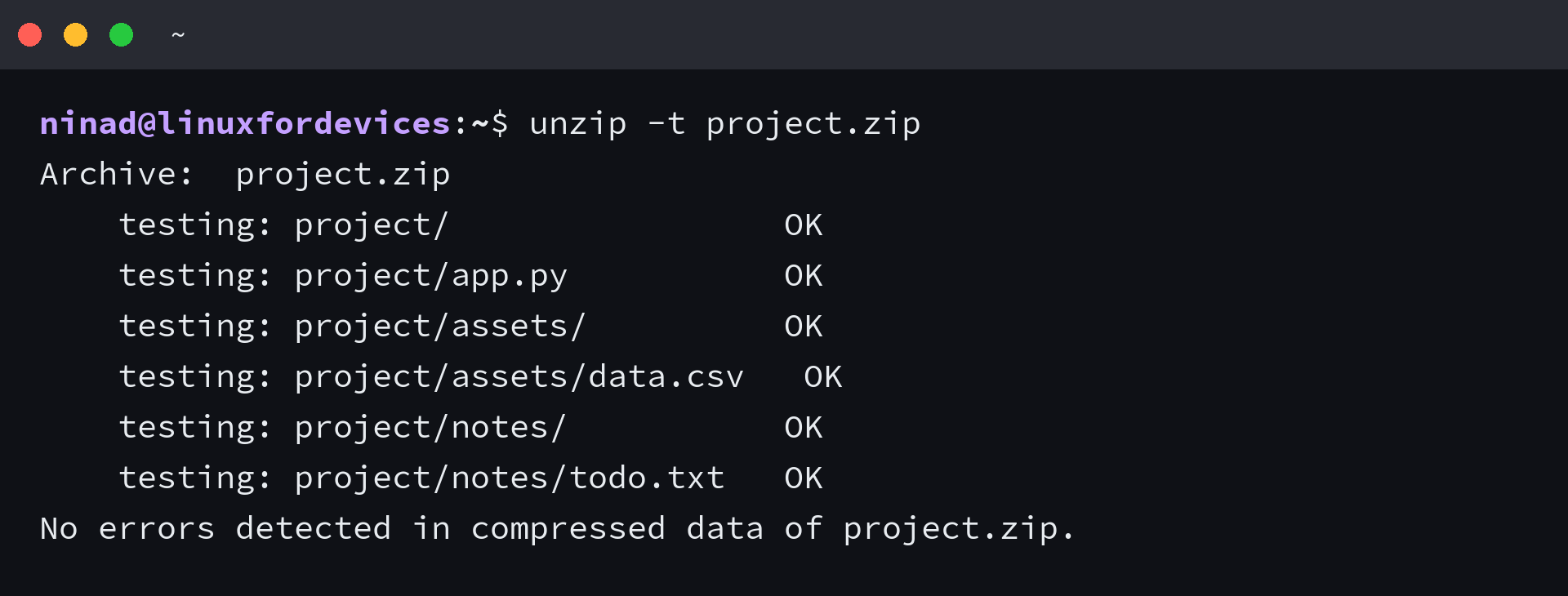
Status 0 means the data reads cleanly. I tested a truncated copy and it returned 9 with the end-of-central-directory error, which names the cause faster than an extraction attempt does.
Split and stream archives you cannot move whole
Size limits turn up on upload forms, mail servers, and removable media, and zip has an answer for each of those cases.
Split an archive into parts
The -s flag sets the size of each part, and the final part keeps the .zip name so the set stays recognisable.
zip -s 64k -r split.zip big
-rw-rw-r-- 1 ubuntu ubuntu 65536 split.z01
-rw-rw-r-- 1 ubuntu ubuntu 65536 split.z02
-rw-rw-r-- 1 ubuntu ubuntu  3741 split.zip
I hit the 64 KB floor with a 1k value, and the error names the limit instead of accepting it.
zip -s 1k -r split.zip big
zip error: Invalid command arguments (minimum split size is 64 KB:  '1k')
exit=16
Extraction needs the parts rejoined first, and the split and compress recipe covers the reassembly step.
Stream instead of writing a file
A single dash as the archive name sends the archive to standard output. You can pipe that into another program or a remote shell without a temporary file in between.
zip -q -r - project > project.zip
On the other side, -p writes a single entry to standard output, which is how you read one file out of an archive without unpacking the rest of it.
unzip -p project.zip project/notes/todo.txt
first note
For a file list you built elsewhere, -@ reads the names from standard input one per line. That is how a find result or a saved list becomes an archive contents list.
find project -name '*.txt' -print | zip -q txtfiles -@
zip is also not the only option. The tar command packs a tree with ownership intact, and gzip is the smaller choice when you only need one file to shrink.
| Situation | What to reach for | Why |
|---|---|---|
| An upload or mail limit caps the file size | zip -s with a part size | the parts rejoin into one archive |
| The archive crosses a pipe or a remote shell | zip -q -r – path | no temporary file is needed at either end |
| One file has to come back out | unzip -p archive.zip path | only that entry is written to standard output |
| The archive has to open on Windows | zip | the format is supported without extra software |
Every option on one page, and what to do next
The table below is the working set from this article, arranged by the task you are trying to finish.
| Task | Command |
|---|---|
| Create an archive from a file | zip archive.zip file |
| Create an archive from a folder | zip -r archive.zip folder |
| Zip the contents without the parent path | cd folder && zip -r ../archive.zip . |
| Suppress the per-file output | zip -q -r archive.zip folder |
| List the entries | unzip -l archive.zip |
| List entry names only | unzip -Z1 archive.zip |
| Show method, size, and checksum | unzip -v archive.zip |
| Extract into the current directory | unzip archive.zip |
| Extract into a named directory | unzip archive.zip -d target |
| Overwrite without prompting | unzip -o archive.zip |
| Keep existing files | unzip -n archive.zip |
| Exclude entries while packing | zip -r archive.zip folder -x ‘folder/skip/*’ |
| Delete an entry | zip -d archive.zip ‘folder/old.txt’ |
| Freshen changed entries only | zip -f archive.zip folder/file |
| Update and add new entries | zip -u archive.zip folder/file |
| Encrypt the archive | zip -e archive.zip file |
| Test the archive | unzip -t archive.zip |
| Split into equal parts | zip -s 64k -r archive.zip folder |
The one rule worth keeping is that the archive holds an entry per name you pass. A folder therefore needs the recursion flag before anything inside it is considered.
Copying the finished archive to another machine is the next step, and the scp command covers that in a single line.
For anything these tables do not answer, the man command opens the full manual that shipped with your system.
The flag descriptions here follow the packaged manual pages for zip 3.0 and unzip 6.00.
Before you send an archive anywhere, run the listing and the test. If the lengths look right and the test says OK, the file is what you think it is.
Frequently asked questions
The questions below come back most often at the prompt and in the search results.
Which flag zips a folder in Linux?
zip -r archive.zip folder. Without -r the command stores the folder name as a single zero-length entry and still exits with status 0.
Where do extracted files go?
Into the current directory by default, with the stored subdirectories recreated underneath it. Add -d target to send the whole tree somewhere else.
How do I pass a zip password in a script?
Use -P, which takes the password on the command line. It works, and it also exposes the value in the process list and in your shell history, so prefer -e when someone is there to type it.
Why does unzip ask to replace files even with -q?
The overwrite prompt is not part of the file list that quiet mode removes. Add -o to overwrite without asking, or -n to keep the files that are already on disk.