

Steam’s built-in Proton runs most Windows games, but the community builds it does not ship by default often fix the games it cannot. GE-Proton adds media codecs and patches that resolve missing cutscenes and audio, Luxtorpeda turns Windows games into native Linux equivalents, and SteamTinkerLaunch exposes advanced launch options. ProtonUp-Qt installs and updates all of these from one desktop window, and it is the same tool whether you run Steam Deck, a Linux desktop, or a handheld running something like Bazzite.
I verified every version in this guide against first-party sources today: ProtonUp-Qt 2.15.1 on Flathub and the AUR, and GE-Proton11-6 as the current GE-Proton release. The screenshots come from the tool running against a live Steam install, and by the end you will have the app installed, a current compatibility tool downloaded, and Steam or Lutris pointed at it.
What ProtonUp-Qt manages
ProtonUp-Qt downloads compatibility tools into the folders your launchers actually read, so you never copy archives manually. The tool picker in version 2.15 covers far more than the original four-fork list, including GE-Proton for Steam, Lutris, Heroic, and Bottles, Luxtorpeda and SteamTinkerLaunch for Steam, and Lutris-Wine for Lutris and Bottles.
- Downloads the current release of a fork into the right directory for Steam, Lutris, Heroic Games Launcher, or Bottles.
- Updates an installed tool to the newest release in two clicks.
- Shows the ProtonDB rating of the games in your Steam library.
- Removes old versions you no longer need.
If you use a GNOME desktop instead of KDE, ProtonPlus, the GTK-based alternative, offers a similar workflow. I still start with ProtonUp-Qt because it supports the widest set of launchers.
Installing ProtonUp-Qt on Linux and Steam Deck
On the Steam Deck, open Discover in Desktop Mode and search for ProtonUp-Qt. On any other distribution, Flatpak is the path the project itself recommends, and it works everywhere flatpak is set up with the Flathub remote.
Before installing, you can confirm what you will get from Flathub. This query is read-only and shows the version, download size, and runtime:
flatpak remote-info flathub net.davidotek.pupgui2
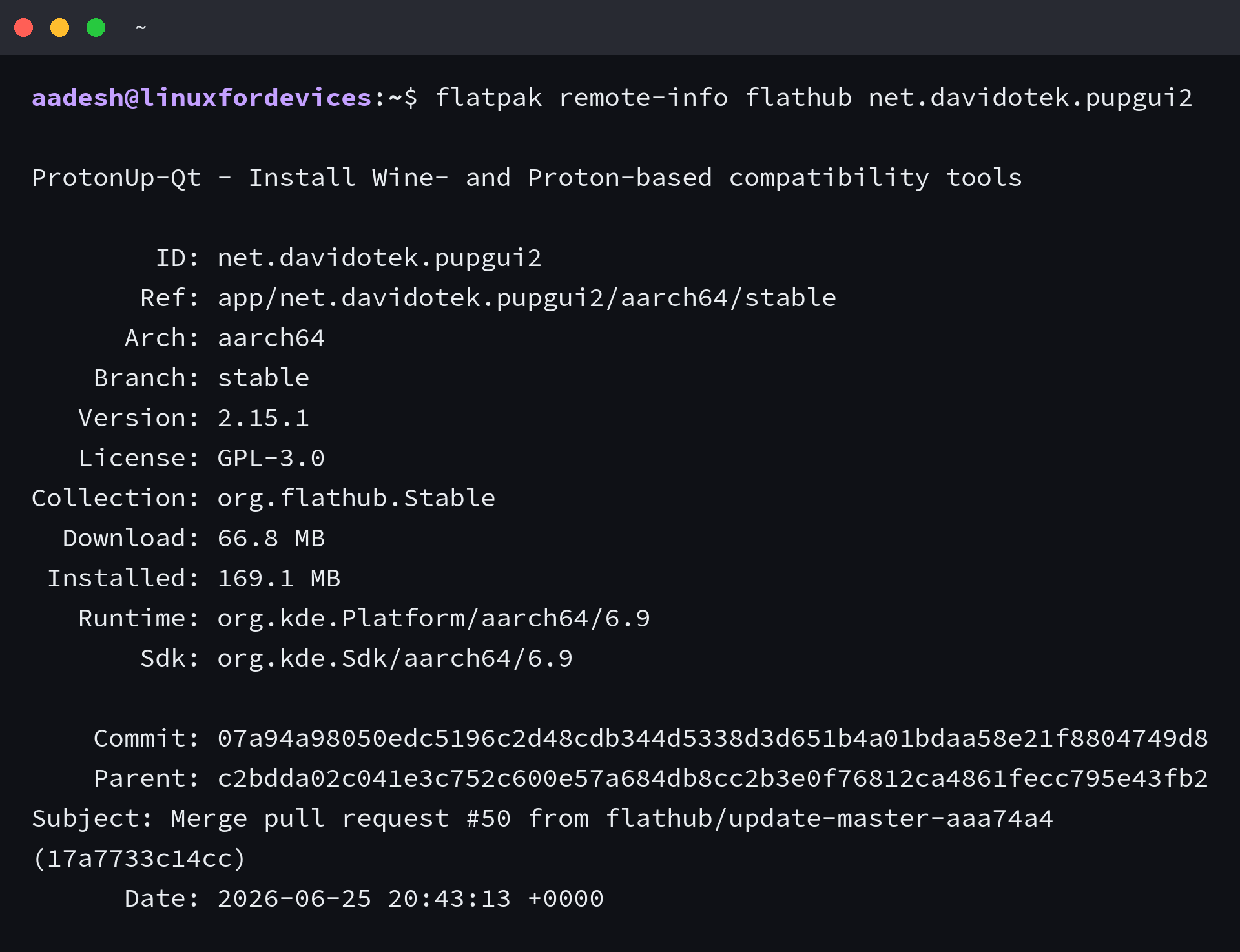
Then install the app itself:
flatpak install flathub net.davidotek.pupgui2
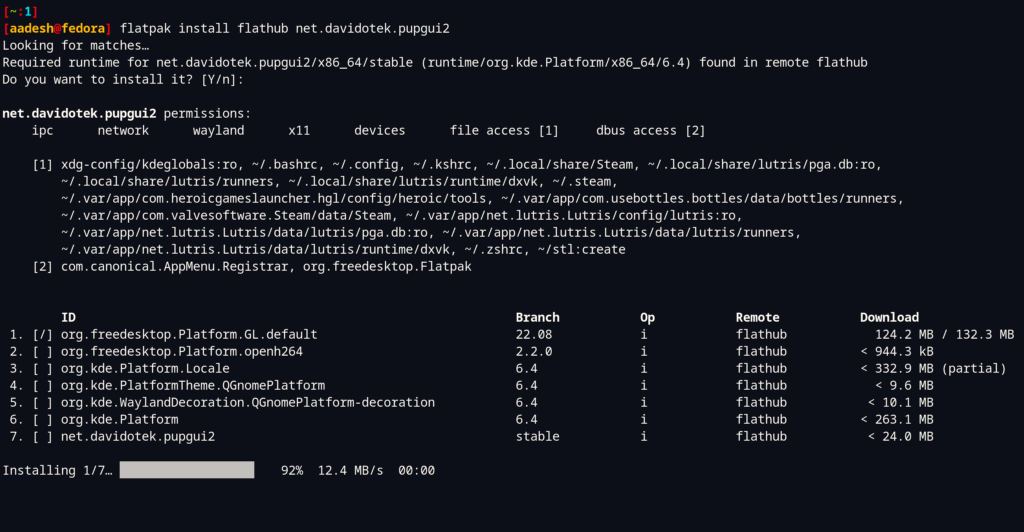
Arch users can take the AUR package instead, which currently tracks the same 2.15.1 release: run yay -S protonup-qt for a source build or yay -S protonup-qt-bin to package the official AppImage. If you prefer a portable copy, grab the AppImage from the GitHub releases page, mark it executable, and run it directly.
Installing a compatibility tool for Steam
Launch ProtonUp-Qt from your app grid. The main window lists one install target per launcher it detects, and each target points at the folder that launcher scans for tools, such as the compatibilitytools.d directory inside your Steam home for Steam.
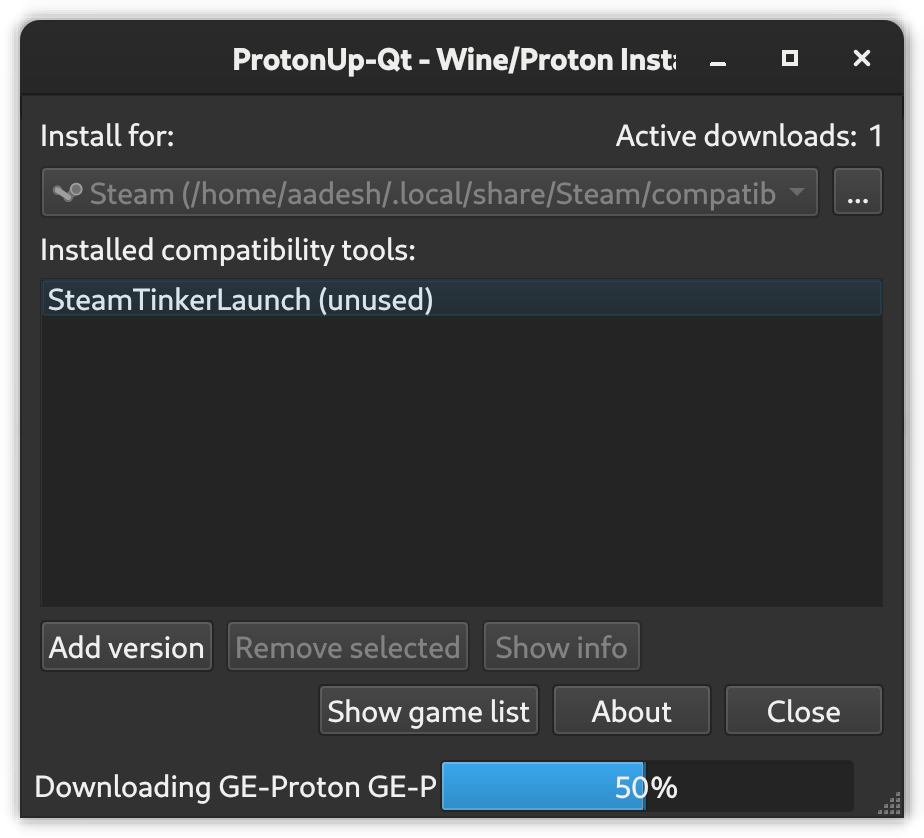
Click Add version to open the tool dialog. Pick the compatibility tool from the first dropdown and the release from the second. For Steam, GE-Proton is the safe default choice, and the dialog says as much: use it when you don’t know what to pick.
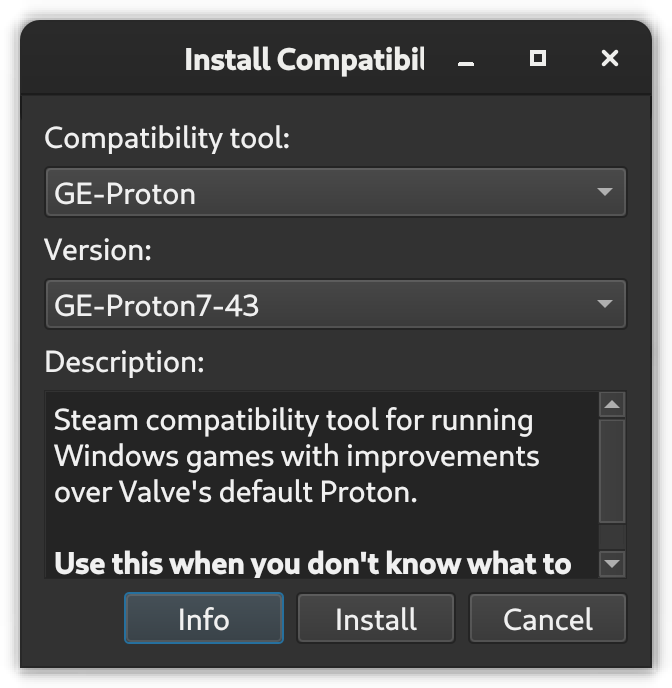
Hit Install and ProtonUp-Qt downloads the archive and unpacks it into the target folder. The version dropdown in that dialog reflects whatever the upstream project has published most recently, so you will see a newer number than the one in this screenshot. Older releases stay installed until you select them and click Remove selected, which keeps the folder tidy when you rotate versions after a broken release.
Selecting the tool in Steam
Steam scans its compatibility folder at startup, so restart the client after installing a tool. Then open Steam → Settings → Steam Play and enable Steam Play for all titles. Pick the new tool in the Run other titles with dropdown.
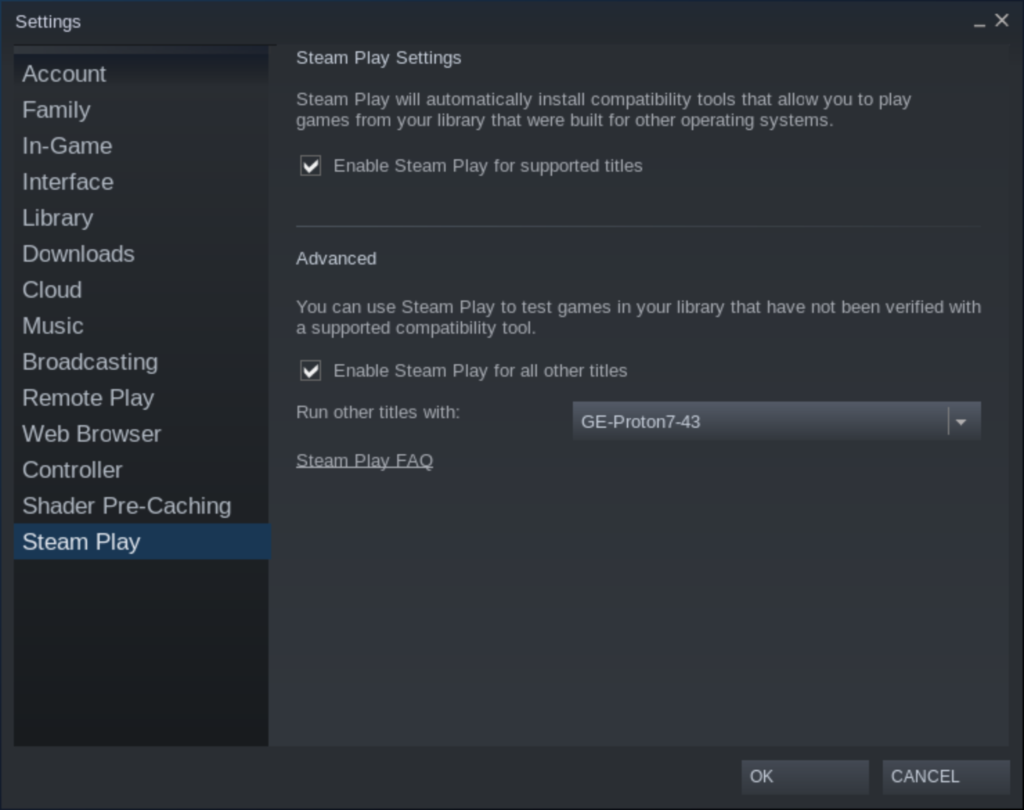
You can also set a compatibility tool per game instead of globally: right-click a game, open Properties → Compatibility, and force it to use the specific tool. Per-game overrides are the better habit because a fork that fixes one game can break another.
From here, two directions pay off. If you want the Deck itself tuned rather than individual games, follow our Steam tweaks guide, and to add plugins on top of the Deck’s desktop, install Decky Loader. For games that live outside Steam entirely, the same tool installs Lutris-Wine for Lutris, and Heroic users can follow the Heroic Games Launcher setup in our Rocket League guide to get that launcher working first.
What about Wine-GE?
Wine-GE is finished. The wine-ge-custom repository was archived in July 2025, and its last release dates to February 2024, because GloriousEggroll folded the work into GE-Proton itself.
Lutris runs GE-Proton builds directly now, so ProtonUp-Qt still gives Lutris users a current GloriousEggroll tool through the GE-Proton entry with Lutris as the install target. For plain Wine builds, the Lutris-Wine entry in ProtonUp-Qt tracks Lutris’s own current releases.
FAQ
Is ProtonUp-Qt available on the Steam Deck?
Yes. Install it from the Discover app in Desktop Mode, or run the Flathub package with flatpak. The app detects the Deck’s Steam install automatically.
How do I update GE-Proton to the latest version?
Open ProtonUp-Qt, select your Steam install target, click Add version, and choose the newest GE-Proton release. Install it, restart Steam, then remove the older version from the installed tools list.
Does ProtonUp-Qt work with Lutris and Heroic Games Launcher?
Yes. ProtonUp-Qt detects Lutris, Heroic, and Bottles installs and downloads compatibility tools into each one’s own folder. Pick the launcher as the install target before adding a version.
Is Wine-GE still maintained?
No. The wine-ge-custom repository was archived in 2025 and GE-Proton absorbed its purpose. Lutris users should install GE-Proton or Lutris-Wine through ProtonUp-Qt instead.
ProtonUp-Qt removes the one part of Proton forking that was genuinely tedious: fetching archives by hand into hidden folders. Once the app is installed, keeping a current GE-Proton is a two-click job on any launcher you use.